

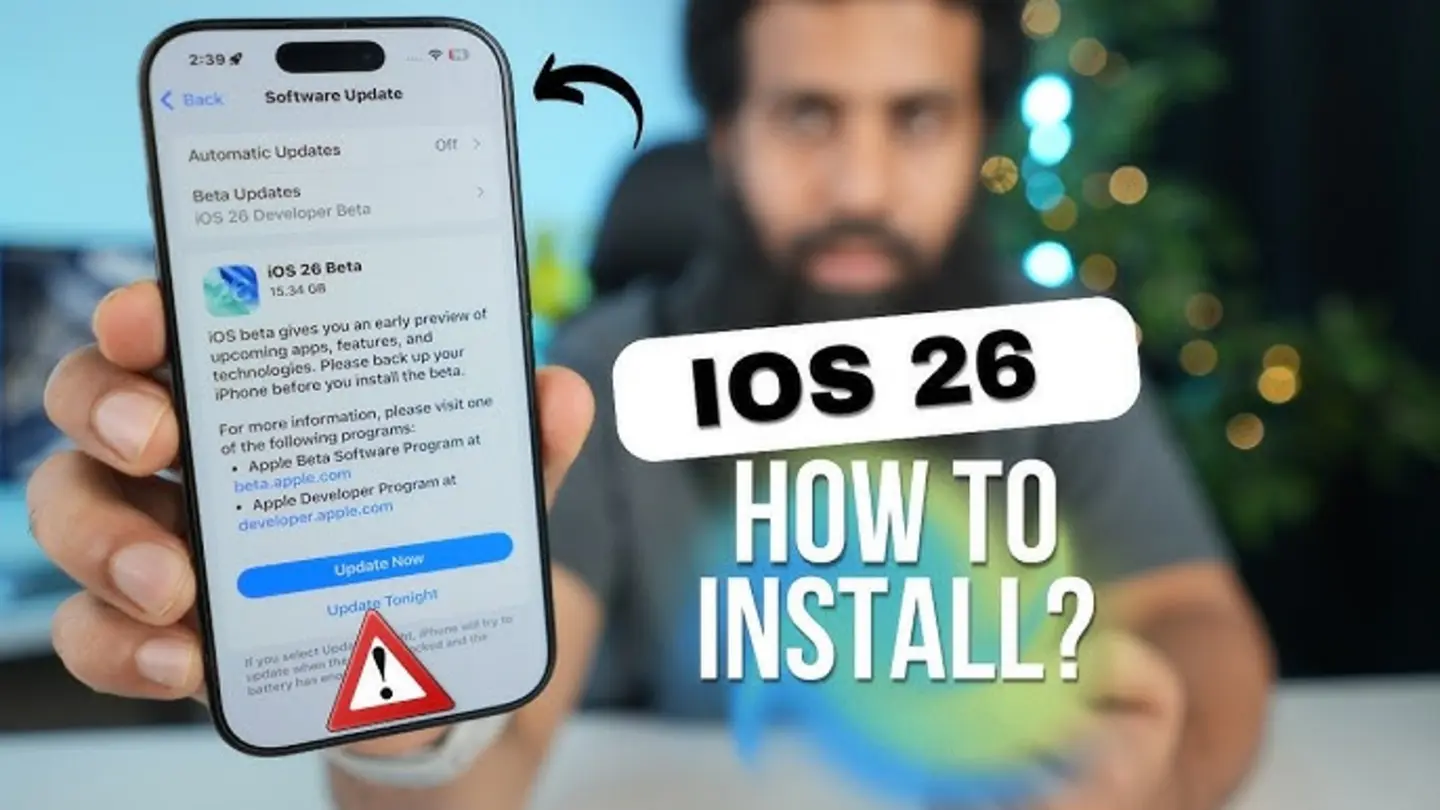
Apple has officially released iOS 26, the newest iteration of its mobile operating system for iPhones. The update promises a host of new features, performance improvements, and security enhancements. Users are encouraged to upgrade their devices to experience the latest Apple has to offer. The upgrade process is relatively straightforward, but it’s essential to take necessary precautions before initiating the update to avoid any data loss or complications.
Preparing for the Upgrade
Before upgrading to iOS 26, it is crucial to back up your iPhone. This ensures that your data, including photos, videos, contacts, and documents, are safely stored in case anything goes wrong during the update process. There are two primary methods for backing up your iPhone: using iCloud or using a computer. To back up using iCloud, go to Settings > [Your Name] > iCloud > iCloud Backup, and tap ‘Back Up Now.’ Ensure your iPhone is connected to a stable Wi-Fi network. Alternatively, you can connect your iPhone to a computer and use iTunes (or Finder on macOS Catalina and later) to create a local backup. Select your device, then choose ‘Back Up Now’ under the ‘Summary’ tab.
Initiating the iOS 26 Upgrade
Once your iPhone is backed up, you can proceed with the iOS 26 upgrade. Ensure your device is connected to a reliable Wi-Fi network and has sufficient battery life (at least 50%). To begin the update, go to Settings > General > Software Update. Your iPhone will automatically search for available updates. If iOS 26 is available, it will appear on the screen. Tap ‘Download and Install’ to begin the download process. You may be prompted to enter your passcode. After the download is complete, tap ‘Install Now’ to begin the installation. The installation process may take some time, during which your iPhone will restart several times. Do not interrupt the process, and ensure your device remains connected to a power source.
Post-Upgrade Checks and Troubleshooting
After the installation is complete, your iPhone will restart and prompt you to enter your passcode. Once you’re logged in, take some time to explore the new features and settings in iOS 26. Check if all your apps are working correctly and that your data has been restored properly. If you encounter any issues, such as app crashes or data loss, try restarting your iPhone. If the problem persists, you may need to restore your iPhone from the backup you created earlier. In some cases, a clean install of iOS 26 may be necessary. This involves erasing all content and settings from your iPhone and then installing the operating system from scratch. This should be done as a last resort, as it will remove all your data. Consult Apple’s support website or contact Apple Support for assistance if needed. Users have already begun reporting enhanced performance and new user interface tweaks, praising the overall experience of iOS 26.
The update also addresses several security vulnerabilities, making it a crucial upgrade for all iPhone users. Staying up-to-date with the latest software ensures your device is protected against potential threats. Apple continues to refine its mobile operating system, delivering a seamless and secure user experience. The new features and enhancements in iOS 26 reflect Apple’s commitment to innovation and user satisfaction.
Image Source: Google | Image Credit: Respective Owner